How to calculate how much memory Google Chrome actually uses
Google Chrome is the most popular browser in the world according to recent statistics. It’s also well known for
consuming a significant amount of memory. The other day, I became curious about how much memory Chrome was actually
using. When I opened Activity Monitor (or htop), I saw something like this:
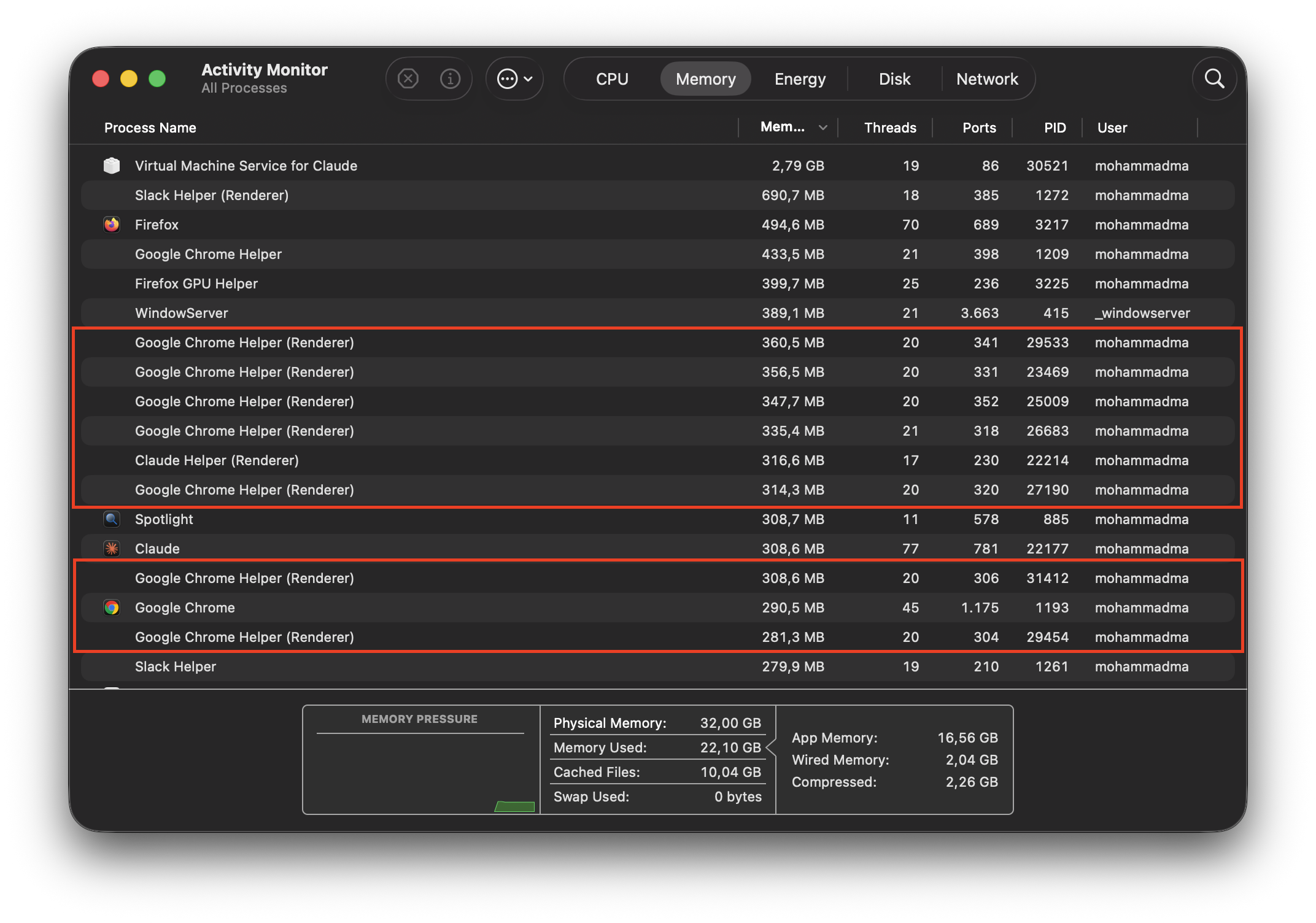
With only six tabs open, there were already more than twenty Chrome-related processes running on my machine. That made me wonder: How much memory is Chrome actually using? So I decided to write a small shell script to calculate the total memory usage of all Chrome processes.
Note: This script sums the RSS (Resident Set Size) of all Chrome processes. RSS is a useful approximation of an application’s memory footprint, but it is not a perfect representation of the total memory used because some memory pages are shared between processes.
The script
Although tools such as macOS Activity Monitor and the popular htop make it easy to inspect running processes,
Unix-like operating systems also provide a powerful built-in utility called
ps.
If you run ps without any additional arguments, it shows a snapshot of the processes associated with your current
terminal session. However, running man ps quickly reveals just how powerful this tiny utility really is. You can
customise almost every aspect of its output, including which columns are displayed. That’s exactly what we’ll take
advantage of.
The first thing we need is a list of every running process on the machine, not just those belonging to the current
terminal session. We can achieve this with the -e option. Since we also need specific columns instead of the default
output, we’ll use -o to specify the fields we want:
ps -eo pid,rss,comm,args
Next, we need to filter the list to only include Chrome-related processes. To keep things simple, we’ll search for the
word chrome. Nothing beats grep when it comes to searching text from the command line:
ps -eo pid,rss,comm,args | grep -iE "chrome"
There’s one small issue, though. Since we’re using grep to search for chrome, the grep process itself also appears
in the results:
45801 1376 grep grep --color=auto --exclude-dir=.bzr --exclude-dir=CVS --exclude-dir=.git --exclude-dir=.hg --exclude-dir=.svn --exclude-dir=.idea --exclude-dir=.tox --exclude-dir=.venv --exclude-dir=venv -iE chrome
A common Unix idiom is to filter that line out using another grep:
ps -eo pid,rss,comm,args | grep -iE "chrome" | grep -v grep
Now we have a list of all Chrome-related processes. The only thing left is to sum their RSS values (reported in KB).
There are many ways to process the output, extract the RSS values, and calculate their sum. To keep everything within a
shell script, I decided to use awk, a small but incredibly powerful
text-processing language.
The AWK is “a scripting language designed for text processing and typically used as a data extraction and reporting tool”. It reads input one line at a time, automatically splits each line into space-separated fields ($1, $2, $3, …), and lets you run code against those fields.
Since the RSS value is the second column in our ps output, we need $2. I also wanted to know how many Chrome
processes were running, so I kept track of both the total memory (sum) and the number of processes (count). Finally,
I converted the total from KB into MB and GB to make the output easier to read.
awk '
{
    sum += $2
    count++
}
END {
    if (count == 0) {
        print "No Chrome processes found."
        exit 1
    }

    printf "Chrome processes found: %d\n", count
    printf "Total RSS memory: %d KB (%.2f MB / %.2f GB)\n", sum, sum/1024, sum/1024/1024
}'
Now we have everything we need. Let’s put the pieces together:
#!/bin/bash

ps -eo pid,rss,comm,args | grep -iE "chrome" | grep -v grep | awk '
{
    sum += $2
    count++
}
END {
    if (count == 0) {
        print "No Chrome processes found."
        exit 1
    }

    printf "Chrome processes found: %d\n", count
    printf "Total RSS memory: %d KB (%.2f MB / %.2f GB)\n", sum, sum/1024, sum/1024/1024
}'
Running the script produces output similar to the following:
Chrome processes found: 34
Total RSS memory: 7191920 KB (7023.36 MB / 6.86 GB)
I found the results surprisingly interesting. During one of my meetings, Chrome’s RSS memory usage climbed to almost 9 GB, which I wasn’t expecting. It was also surprising to see that Chrome had more than 30 processes running at the same time.
If you’re curious about your own numbers, simply copy the script above into a file—for example,
chrome_processes.sh—make it executable, and run it:
chmod +x chrome_processes.sh
./chrome_processes.sh
I’m curious to know what numbers you get. Feel free to let me know in the comments.


